
Getting to grips with RSelenium
Don't hate the player, hate the game
Hanjo Odendaal
Why we use RSelenium
RSelenium allows you to carry out unit testing and regression testing on your webapps and webpages across a range of browser/OS combinations
- Selenium makes our task easy as it can scrape complicated webpages with dynamic content
- "Human-like" behaviour such as clicking and scrolling
- FINALLY a stable server instance through docker!
- They joy when you finally get it working!
Getting the old boy started
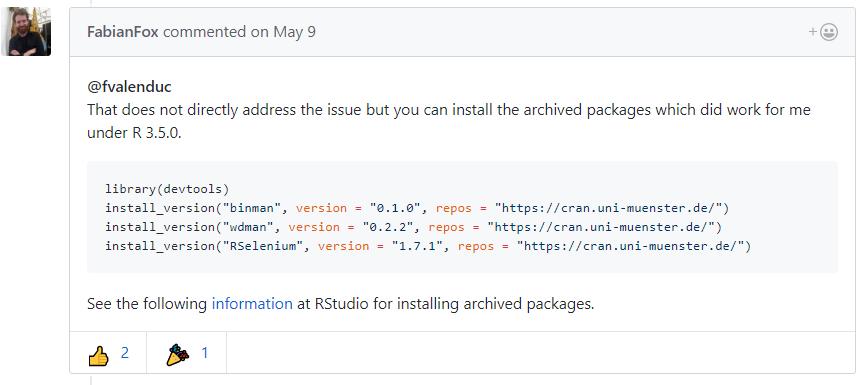
CRAN recently removed RSelenium from the repo, thus it is even more difficult to get the your Selenium instance up and running in R
Getting the old boy started
We will be using devtools to install the necessary dependencies from github
devtools::install_github("johndharrison/binman")
devtools::install_github("johndharrison/wdman")
devtools::install_github("ropensci/RSelenium")
Once you have installed all the packages, remember to load RSelenium into your workspace
library(RSelenium)
library(rvest)
library(tidyverse)
Turning the iginition (docker style)
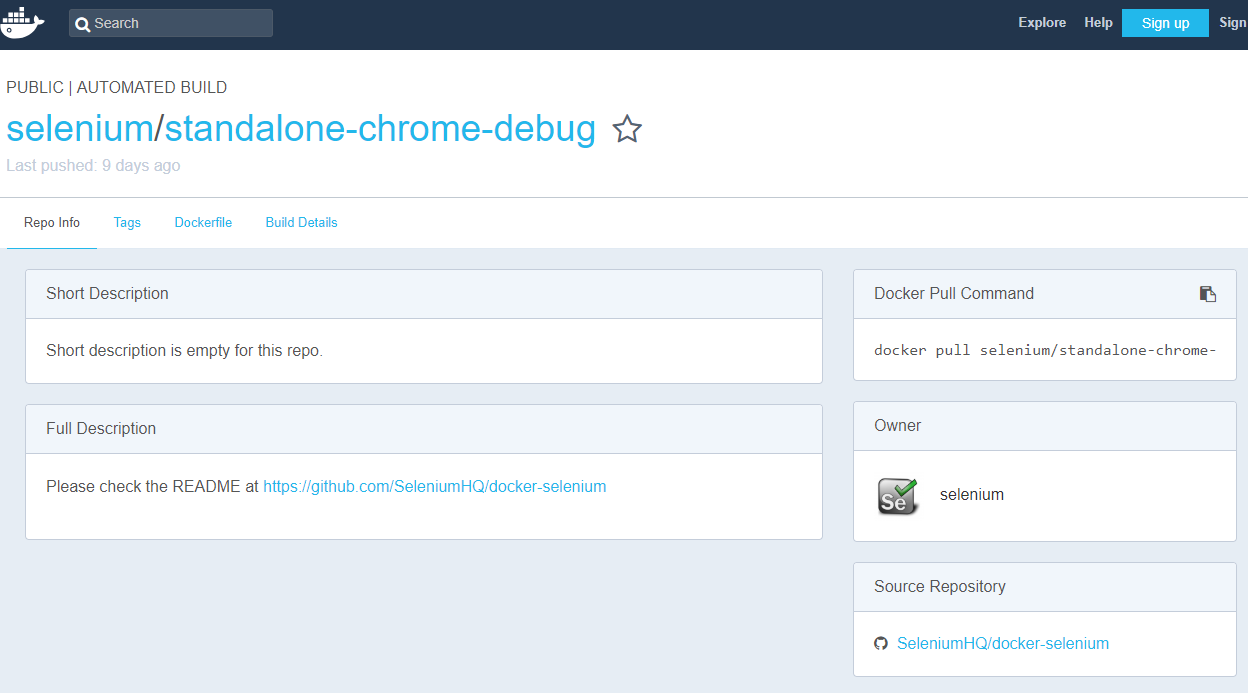
RSelenium is notorius for instability and compatibility issues. It is thus amazing that they now have a docker image for headless webdrivers. Running a docker container standardises the build across OS’s and removes many of the issues user may have relating to JAVA/browser version/selenium version
- Offers improved stability
- Greater ease in setting up the Selenium server
- Quick up and down
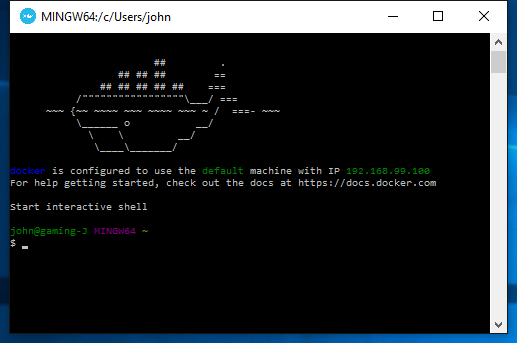
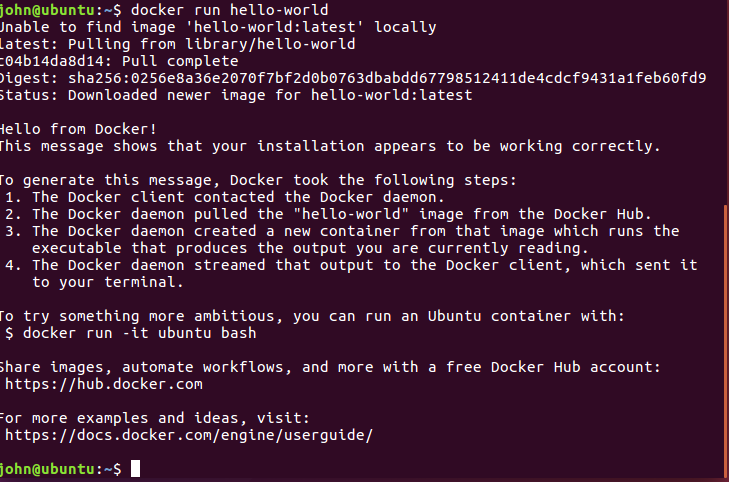
Get your environment setup
Turning the iginition (docker style)
If you don't want docker to run as root (you dont), then once docker has been installed, create a group and add the docker user to it:
sudo groupadd docker
sudo usermod -aG docker $USER
Turning the iginition (docker style)
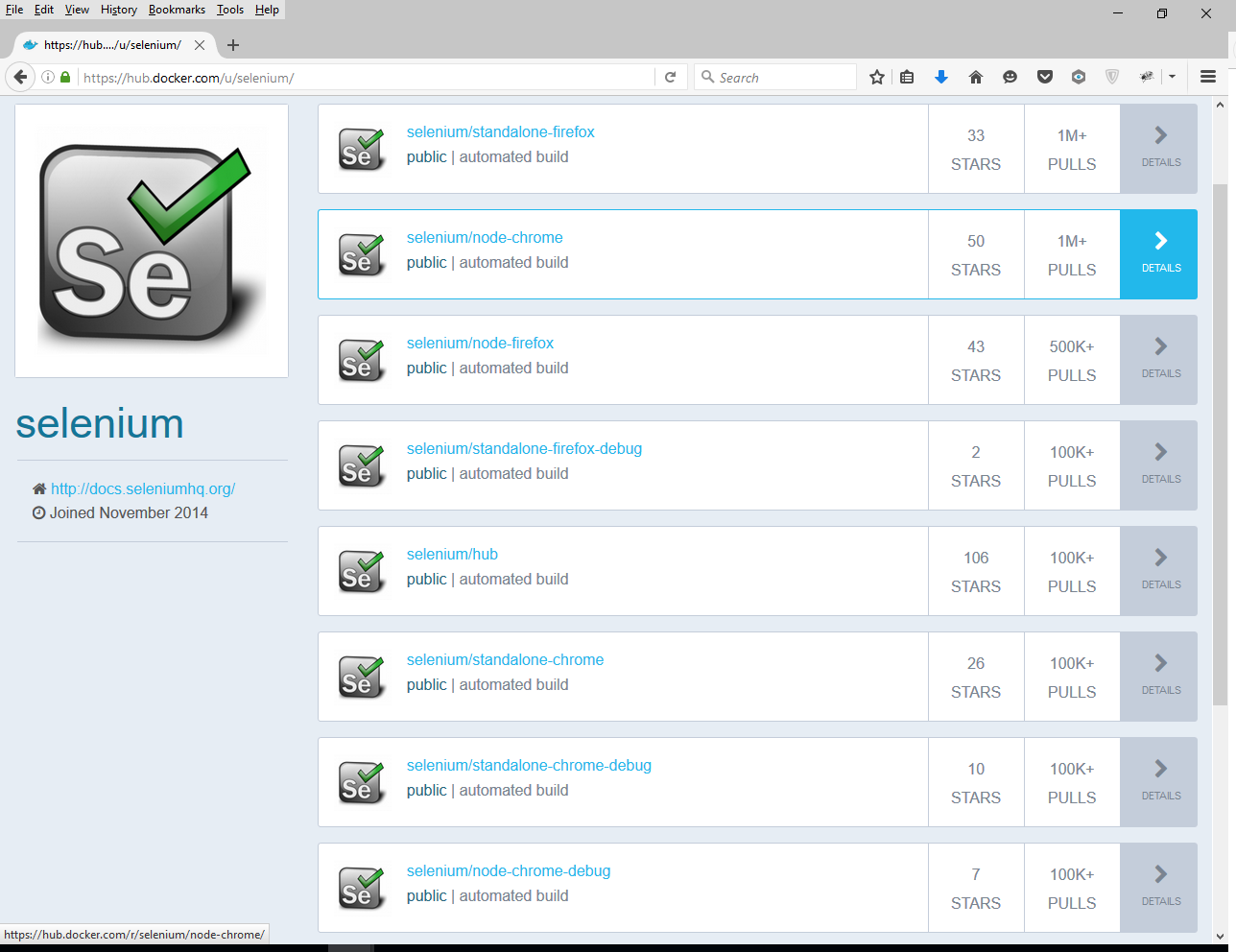
Pulling an image
sudo docker pull selenium/standalone-chrome-debug
Starting your Selenium Server in debug
docker run --name chrome
    -v /dev/shm:/dev/shm -d -p 4445:4444 -p 5901:5900 selenium/standalone-chrome-debug:latest
sudo docker ps
-namename your container, otherwise docker will ;-)-vmount volume-ddetached mode-pport mapping (external:internal)- if on external server:
127.0.0.1:port:port
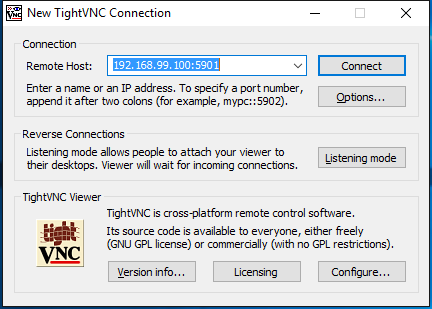
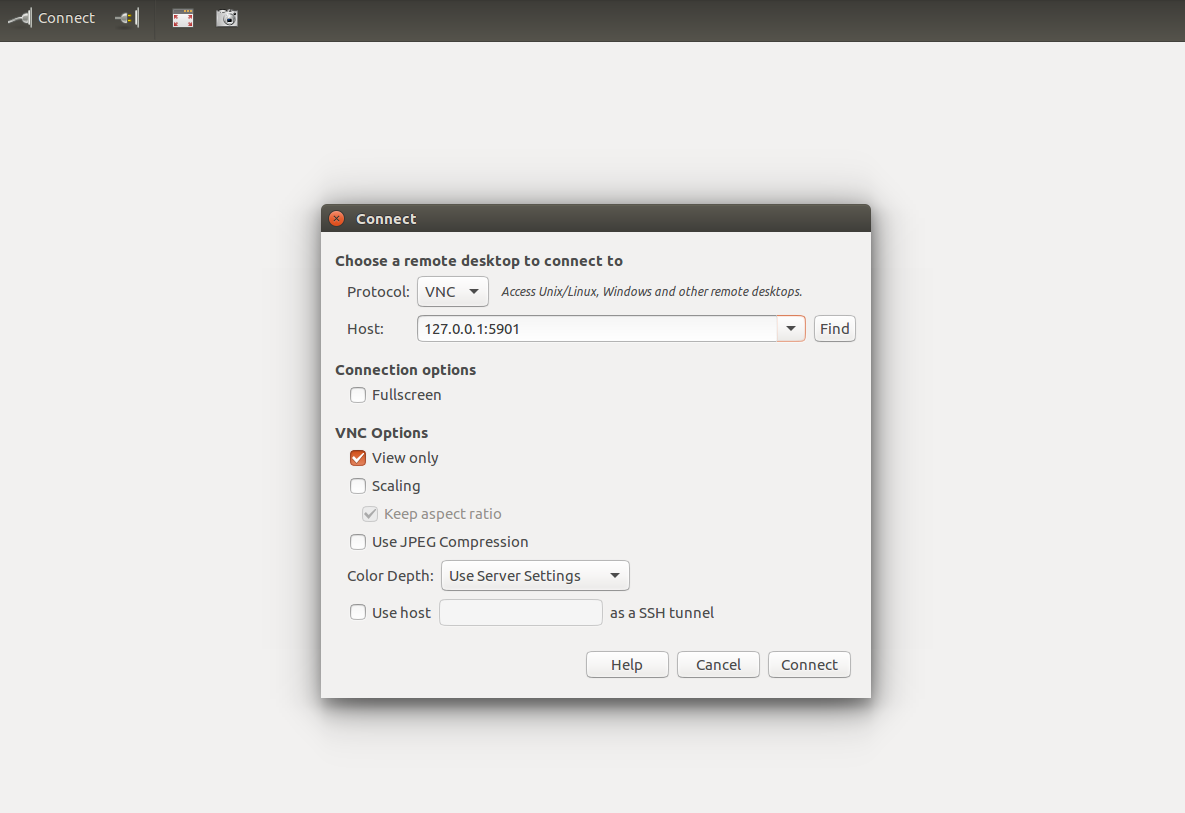
Attach your viewport (TightVNC & Vinagre)
We can use Virtual Network Computing (VNC) viewers to view what is happening
Finally - RSelenium is operational
Now that the most difficult bit related to getting Selenium running is done, lets get to the fun bits:
- Quick overview of the tools you will be using
- Useful functions written in javascript that I find useful
- Obsure and fun functions
- Combine it all into a case study
Open and navigate
library(RSelenium)
remDr <- remoteDriver(remoteServerAddr = "192.168.99.100",
                      port = 4445L,
                      browser = "chrome")

remDr$open()
remDr$navigate("http://www.google.com")
remDr$navigate("http://www.bing.com")
remDr$goBack()
remDr$goForward()
Using keys and Scrolling
RSelenium:::selKeys %>% names() %>% head
remDr$sendKeysToActiveElement(list(key = "page_down"))
remDr$sendKeysToActiveElement(list(key = "page_up"))

remDr$executeScript("return window.scrollY", args = list(1))
remDr$executeScript("return document.body.scrollHeight", args = list(1))

remDr$executeScript("return window.innerHeight", args = list(1))
remDr$executeScript("return window.innerWidth", args = list(1))

remDr$sendKeysToActiveElement(list(key = "home"))
remDr$sendKeysToActiveElement(list(key = "end"))
Interacting with the DOM
The DOM stands for the Document Object Model. It is a cross-platform and language-independent convention for representing and interacting with objects in HTML, XHTML and XML documents. To get the whole DOM:
remDr$getPageSource() %>% .[[1]] %>% read_html()
To interact with the DOM, we will use the findElement method:
- Search by id, class, selector, xpath
remDr$navigate("http://www.google.com/")
webElem <- remDr$findElement(using = 'class', "gsfi")
webElem$highlightElement()
Interacting with the DOM
Having identified the element we want to interact with, we have a couple of methods that we can apply to the object:
webElem$click()
webElem$click(2)

# Cannot interact with objects not on screen
remDr$mouseMoveToLocation(webElement = webElem)
remDr$executeScript("arguments[0].scrollIntoView(true);", args = list(webElem))

webElem$sendKeysToActiveElement(list(key = 'down_arrow', key = 'down_arrow', key = 'enter'))
webElem$sendKeysToActiveElement(list("Hallo World", key = 'enter'))
Nice to have functions
remDr$maxWindowSize()
remDr$getTitle()
remDr$screenshot(display = TRUE)

b64out<- remDr$screenshot()
writeBin(RCurl::base64Decode(b64out, "raw"), 'screenshot.png')

# Scroll into view
remDr$executeScript("arguments[0].scrollIntoView(true);", args = list(webElem))
Building a RSelenium pipe function
RSelenium has 2 types of commands:
- Those with side-effects (action)
- Those that returns information we want to push into
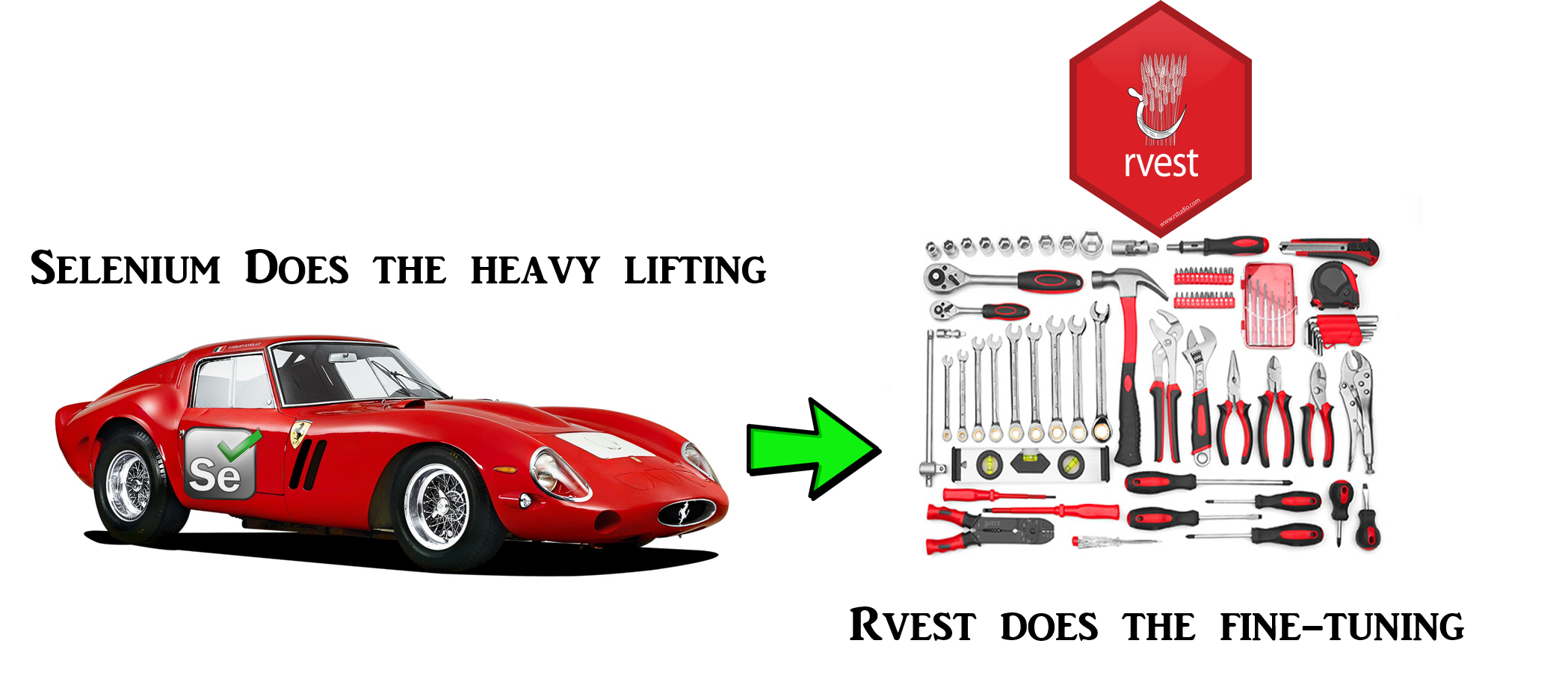
rvest
navi <- function(remDr, site = "https://www.google.com"){
  remDr$navigate(site)
}

remDr %>% navi(., "https://www.google.com")
Building a RSelenium pipe function
RSelenium has 2 types of commands:
- Those with side-effects (action)
- Those that returns information we want to push into
rvest
take_pic <- function(remDr){
  remDr$maxWindowSize()
  remDr$getTitle()
  remDr$screenshot(display = TRUE)
}

remDr %>% take_pic(.)
A Tour of the winelands!
Extending your wine knowledge
Australia is famous for its wines! Lets find out a little bit more about the wine region
- Go to vivino.com
- Collect 2 pages worth of information > - Name of wine farm, name of wine, star rating, count of ratings
- Take 5 min to plan your collection (write steps on top of your script)
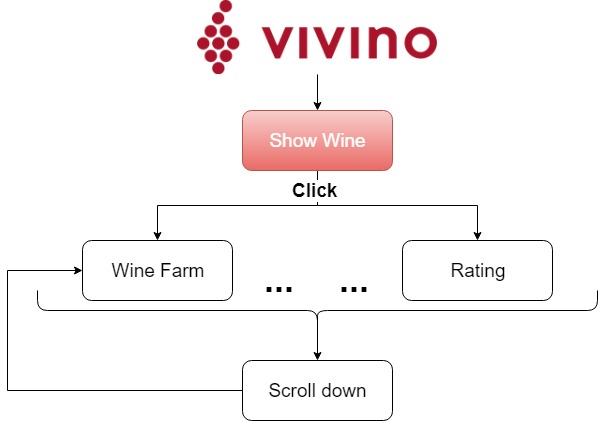
Display all the wine
# Connect
library(RSelenium)
robotstxt::paths_allowed()
remDr <- remoteDriver(remoteServerAddr = "192.168.99.100",
                      port = 4445L,
                      browser = "chrome")
remDr$open()
remDr$navigate("https://www.vivino.com/explore")

# Find, highlight and click element to proceed to vivino explore wines
webElem <- remDr$findElement("css", '.explore-widget__main__submit__button')
webElem$highlightElement()
webElem$clickElement()

# Nice function that will move us to webelement
scrollTo <- function(remDr, webElem){
  remDr$executeScript("arguments[0].scrollIntoView(true);", args = list(webElem))
  webElem$highlightElement()
}
Lets filter all wine from Australia
webElem <- remDr$findElements("xpath", '//input[starts-with(@class, "filterPills")]')

scrollTo(remDr, webElem[[2]])

webElem[[2]]$clickElement()
webElem[[2]]$sendKeysToActiveElement(list("Australia"))

webElem <- remDr$findElements("css", '.pill__inner--7gfKn')

country_elem <- webElem %>%
  sapply(., function(x) x$getElementText()) %>%
  reduce(c) %>%
  grepl("Australia", .) %>%
  which

scrollTo(remDr, webElem[[country_elem]])

webElem[[country_elem]]$clickElement()
Next we go to end and to 'load more' wines
remDr$executeScript("return window.scrollY", args = list(1))
remDr$executeScript("return document.body.scrollHeight", args = list(1))

remDr$sendKeysToActiveElement(list(key = "end"))
remDr$executeScript("return window.scrollY", args = list(1))
Now we done with RSelenium, on to rvest!
pg <- remDr$getPageSource() %>% .[[1]] %>%
  read_html()

collect_info <- function(pg){
  farm <- pg %>% html_nodes(".vintageTitle__winery--2YoIr") %>%
    html_text()

  wine <- pg %>% html_nodes(".vintageTitle__wine--U7t9G") %>%
    html_text()

  rating <- pg %>% html_nodes("span.vivinoRating__rating--4Oti3") %>%
    html_text() %>%
    as.numeric

  rating_count <- pg %>% html_nodes("span.vivinoRating__ratingCount--NmiVg") %>%
    html_text() %>%
    gsub("[^0-9]", "",.) %>%
    as.numeric

  data.frame(farm, wine, rating, rating_count)
}

collect_info(pg)